Compare File Versions in picdrop
1782738000000
Yay! You can now use File Versions in picdrop.
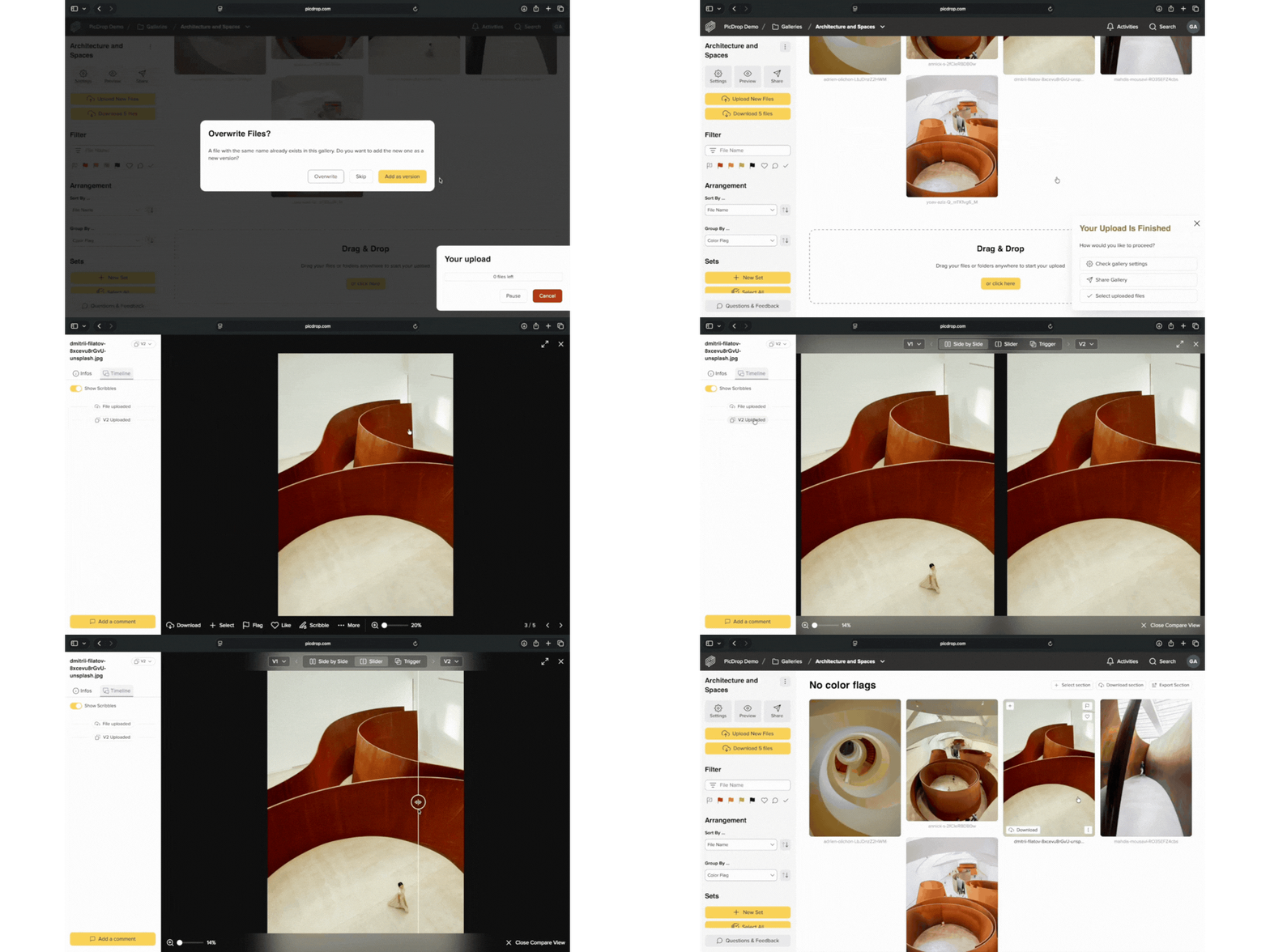
From now on, you can upload a new version of an existing file without losing the previous one — perfect when you and your clients want to track different editing stages of a file at a glance.
When you upload a file with the exact same filename to the same gallery, simply choose “Add as version” to keep the previous file and save the new one as the current version.
You can find all versions in the file’s detailed view. There, you can compare image versions, download individual versions, or restore an older version. Your clients can also view and compare versions. When downloading, they will always receive the latest version.
The latest version is always displayed automatically in the gallery.
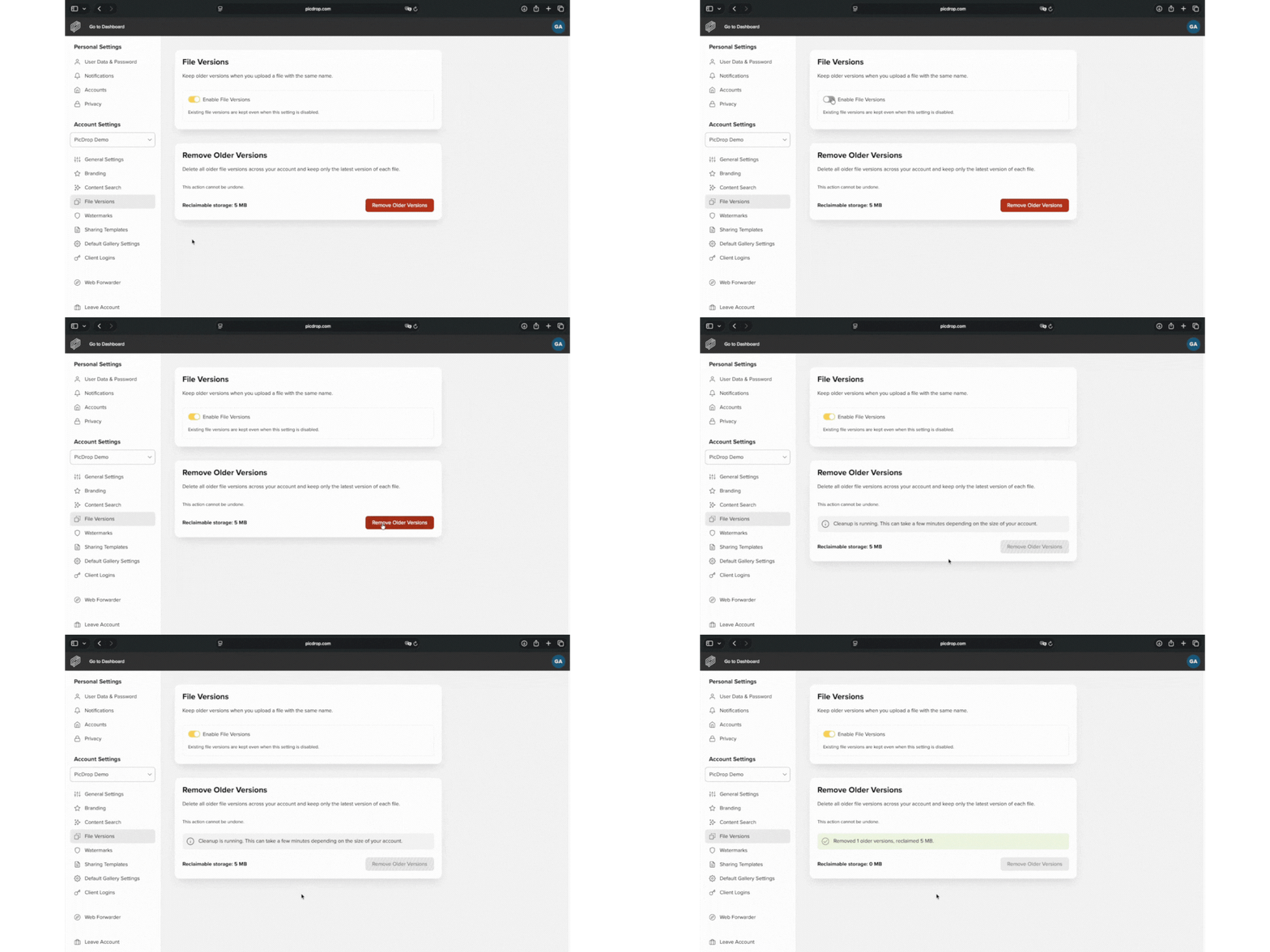
Please note: File Versions count toward your storage. Existing versions can be hidden by disabling File Versions, or permanently removed via cleanup to free up storage.
File Versions are available in Pro, Advanced, Business, and Enterprise plans.
You can find more information in our FAQ.
Did you like this update?


Leave your name and email so that we can reply to you (both fields are optional):