Import files directly from Dropbox into picdrop
1791460320000
Your images, videos, or PDFs are already in Dropbox and need to be added to a picdrop gallery? You can now import them directly, without downloading them to your computer first and uploading them again to picdrop.
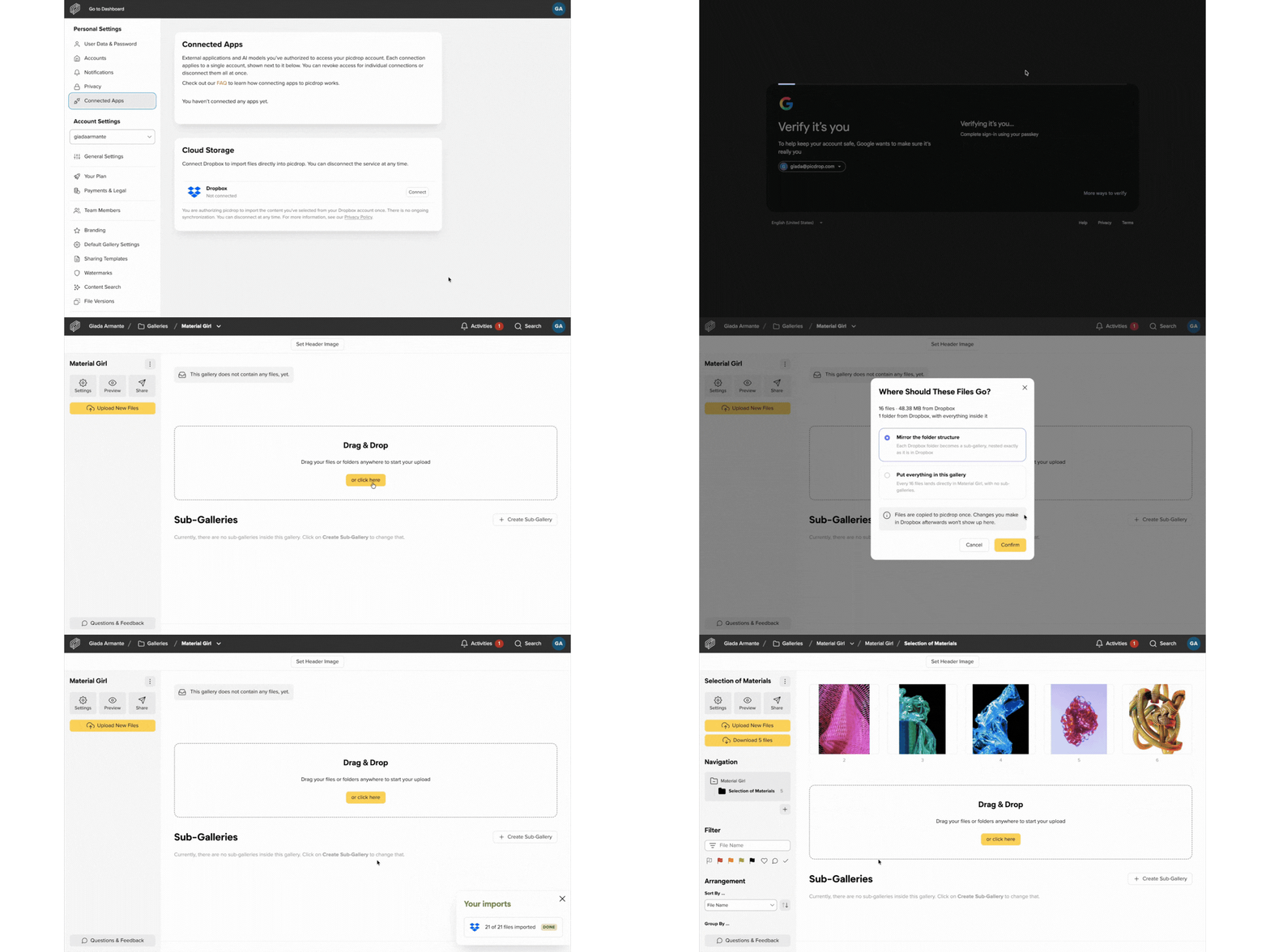
With Cloud Import, you can connect your Dropbox account to picdrop under “Connected Apps”. Then open the upload dialog in the gallery where you want to add your files, click “Import files” under Dropbox, and choose the files or folders you would like to import.
Your folder structure can be kept too: picdrop creates matching sub-galleries for the Dropbox folders you select. That way, your project stays organised just as you set it up.
picdrop checks your selection before the import starts and lets you know about any known limitations. The import then continues in the background, so you can close your browser. We’ll send you an email as soon as it’s complete.
Each import can include up to 2,000 files and 500 folders. You can import images, graphics, videos, and PDFs supported by picdrop. Files that are already in the target gallery are skipped and listed in the import report.
Important: Cloud Import currently supports Dropbox only. One import can run at a time for each connected Dropbox account. Any additional imports are queued and start automatically once the previous import is complete.
You can find more information in our FAQ.
Did you like this update?


Leave your name and email so that we can reply to you (both fields are optional):